Usage
Instructions for using Aserdev-OS.
navigation
a after a successful installation of aserdev-os, you will be greeted with a simple hyprland environment. here are some basic navigation tips to get you started:
- open the application launcher by pressing
super+A, or click the 🚀 icon in the top left corner. - use
super+Enterto open a terminal. - switch between workspaces using
super+1tosuper+0. - close windows with
super+Q. - access system settings and power options from the waybar system tray.
- to open the quick menu press
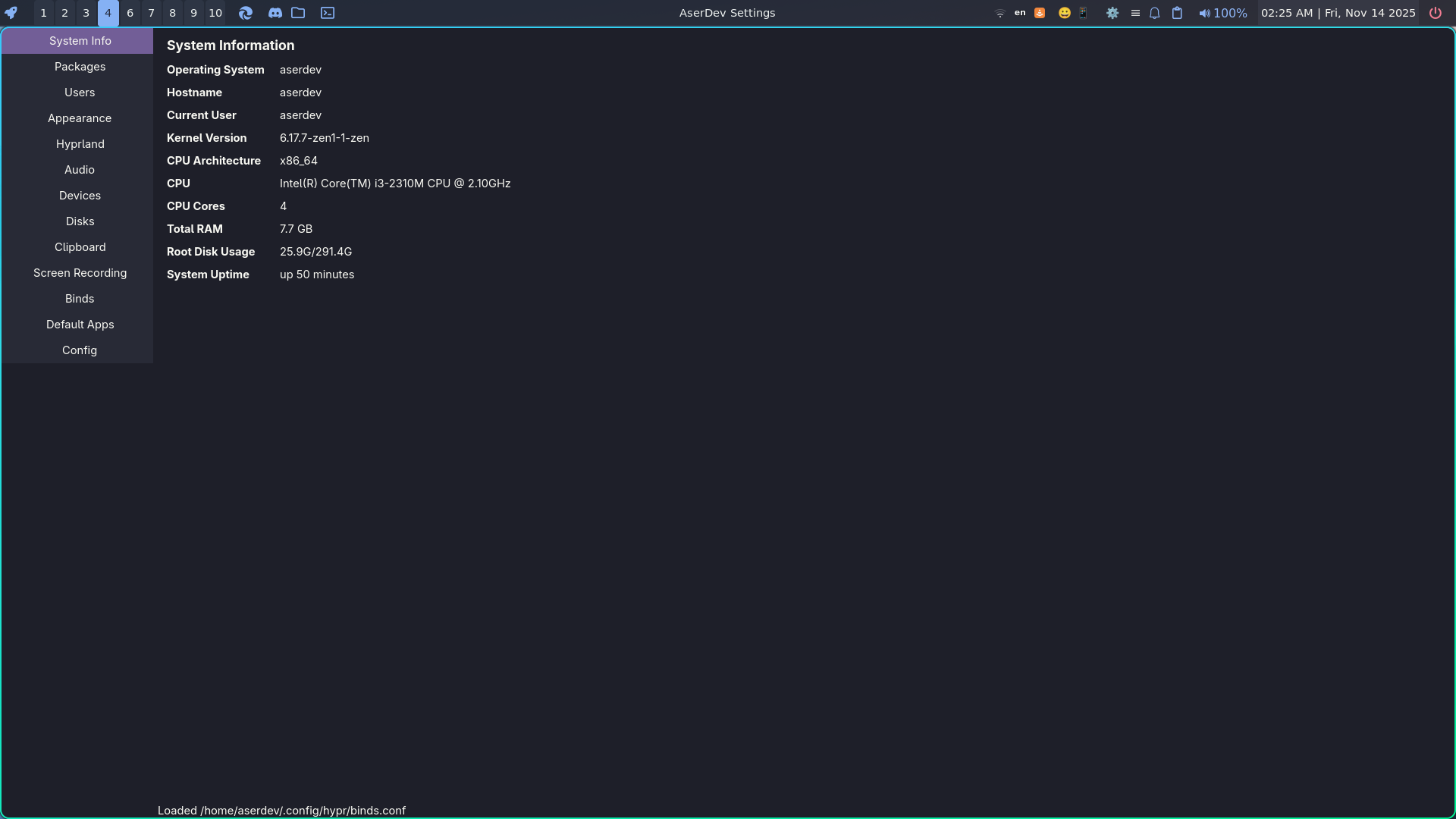
super+I. - aserdev-os comes with a simple settings app made with gtk4 can open by clicking the ⚙️ icon in the waybar.
- to see your clipboard history press
super+V. - or use the emoji picker by pressing
super+PERIOD. - to copy text, use the standard
Ctrl+Ckeyboard shortcut. - to paste text, use the standard
Ctrl+Vkeyboard shortcut. - to open your file manager, press
super+E.
quick menu
aserdev-os's quick menu can be accessed by pressing super + I.
and it is very helpfull if you get used to it.
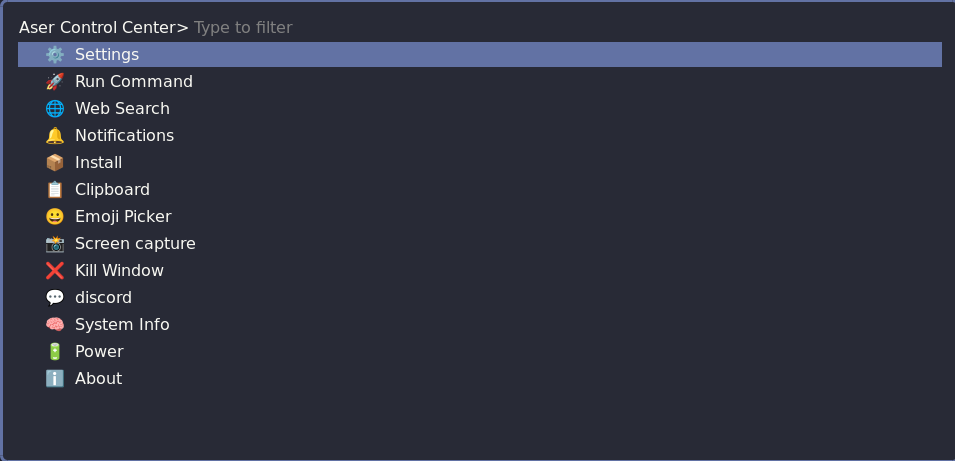
quick menu options:
- settings: open's settings
- run command: gives a menu to run a command
- websearch: allows you to quickly search the web
- notifications: view recent notifications using
swaync - install: install applications or updates
- clipboard: access clipboard history
- emoji picker: pick and insert emojis
- screen capture: capture screenshots or record your screen
- kill window: close the currently focused window
- discord: open Discord application
- systeminfo: view system information
- power: access power options such as shutdown, restart, and logout
- about: opens my github repository
settings
aserdev-os comes with a simple settings app made with gtk4. you can open it by clicking the ⚙️ icon in the waybar or by searching for "settings" in the application launcher.